


How to Buy Minecoins with Google Pay in 2026

Eneba Hub contains affiliate links, which means we may earn a small commission if you make a purchase through them—at no extra cost to you. Learn more


QUICK ANSWER
To buy Minecoins with Google Pay: open Minecraft, head to Marketplace, and choose a Minecoins pack. Android purchases use Google Play billing rather than a separate Google Pay checkout. If you specifically want to pay with Google Pay, buy a compatible prepaid code from Eneba, and try HUB10 for an extra 10% off eligible offers.
For anyone researching how to buy Minecoins with Google Pay, the first option to check is Minecraft Marketplace. Open Bedrock Edition, choose a pack, and review the payment methods your platform accepts. On Android, purchases use Google Play billing rather than a separate Google Pay checkout. This guide covers the purchasing process, payment availability, fees, common checkout issues, and code redemption.
Alternatively, you can purchase compatible prepaid codes from third-party retailers that accept Google Pay. However, your chosen product still needs to match your Minecraft edition, platform, and activation region.
Jump to:
Important Things to Know Before Buying Minecoins with Google Pay
Google Pay can simplify online checkout, but it doesn’t determine whether a Minecoins purchase will work with your Minecraft account. Here are the important details to consider before choosing a store or payment method.
- Google Pay vs. Google Play billing: Google Pay is a payment option offered by participating websites and apps. Android purchases inside Minecraft use Google Play billing, which displays the eligible payment methods associated with your Google account. You won’t necessarily see a separate Google Pay button.
- Account requirements: Google Pay website purchases require an eligible saved payment method. For Android purchases, your Google account handles billing, while your Microsoft account connects to your Minecraft profile and Minecoins balance.
- Nintendo restrictions: Since October 27, 2026, newly purchased Minecoins on Nintendo Switch and Switch 2 can only be spent on Nintendo devices. Purchases made elsewhere cannot be spent there. Minecoins owned before that date remain accessible across compatible platforms through a Legacy Wallet.
- Minecraft edition compatibility: Minecoins are primarily used in the Minecraft Marketplace in Bedrock Edition. Java Edition doesn’t have the same Marketplace, and PlayStation uses Minecraft Tokens for new purchases.
- Prepaid codes and regional compatibility: Direct store purchases add currency without separate activation. Prepaid Minecoins codes require redemption, and some products have specific regional or platform restrictions. Check those requirements before purchasing.
Once you’ve confirmed how your payment will be processed and where the Minecoins can be used, you’re ready to choose your purchasing route.
How to Buy Minecoins with Google Pay
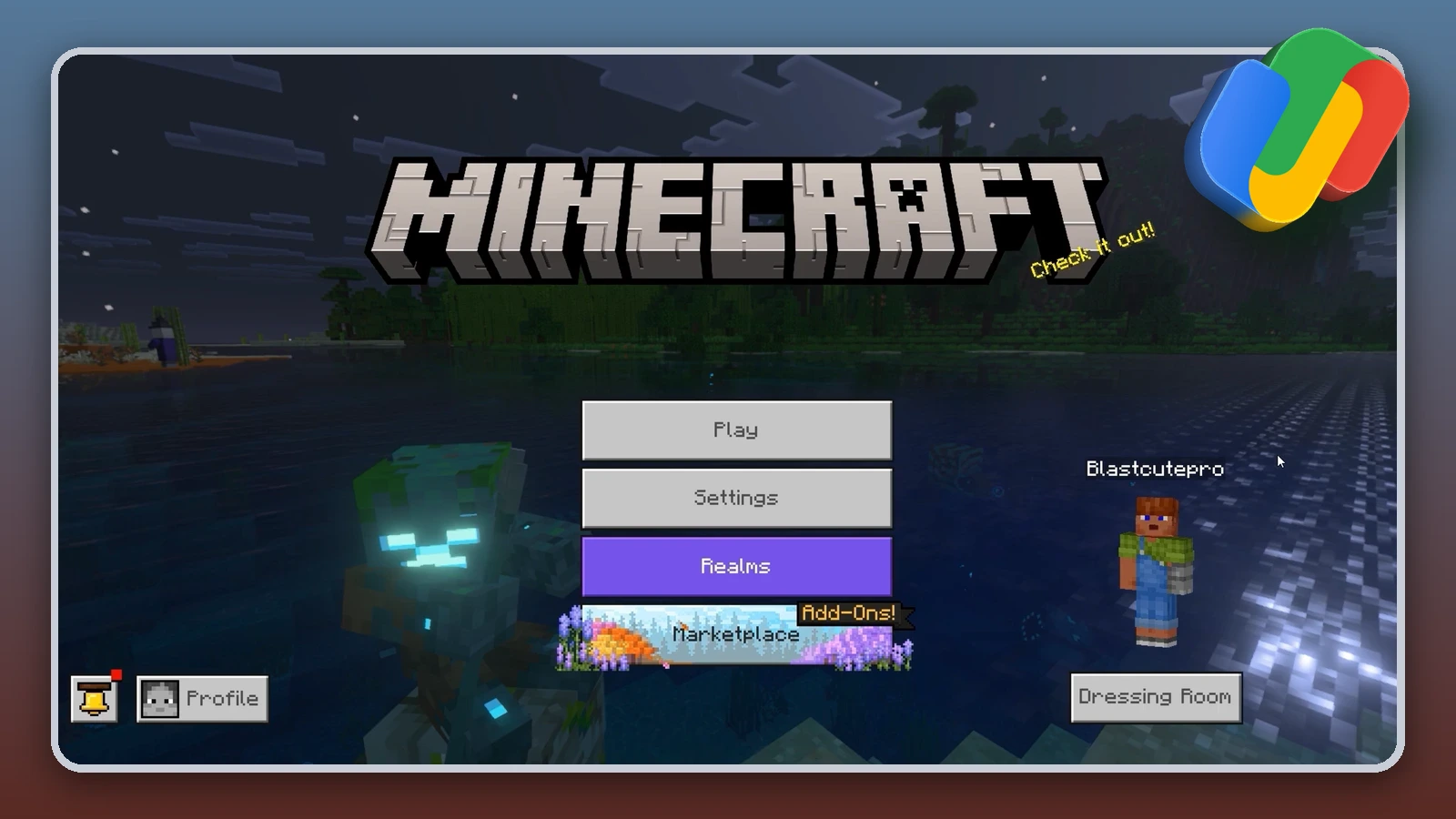
You can purchase Minecoins directly through Minecraft Marketplace or a supported official online store. On Android, these purchases use Google Play billing rather than a separate Google Pay checkout. Some official websites may offer Google Pay, depending on your region and device.
Here’s how to buy Minecoins with Google Pay or the available official billing options.
Step 1: Open Minecraft Marketplace
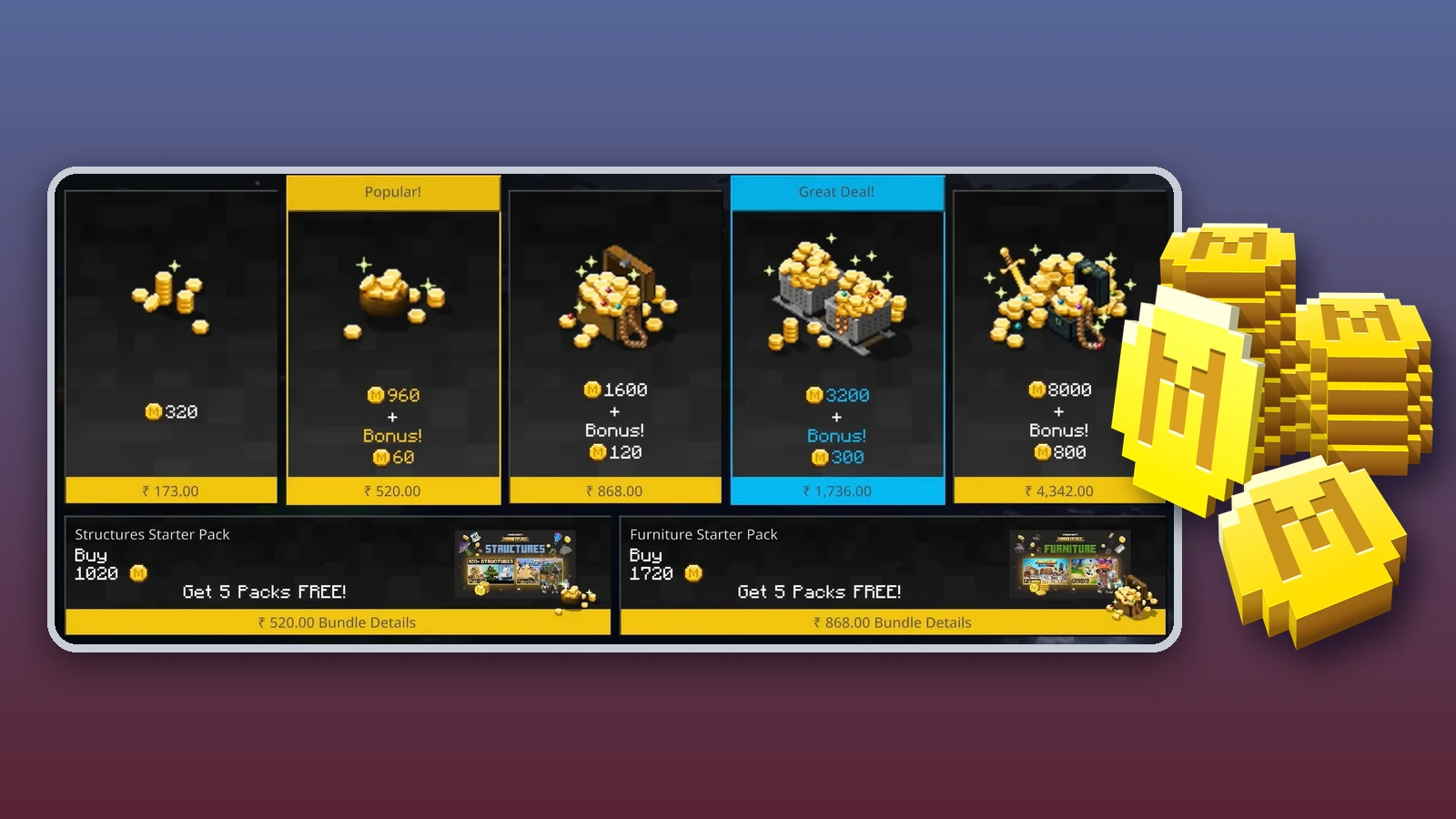
Launch Minecraft: Bedrock Edition and sign in to your Microsoft account. Select Marketplace from the main menu, then tap the plus (+) icon beside your Minecoins balance to view the available packs. You can also visit an official platform store that sells Minecoins.
Step 2: Choose your Minecoins pack
Select the amount of Minecoins you want. Review the price and supported platform, particularly if you’re purchasing through an online store for use on another device.
Step 3: Confirm your account details
Make sure your Microsoft account is associated with the Minecraft profile receiving the currency. On Android, also confirm which Google account is handling the payment, since your Google Play purchase receipt will be associated with that account.
Step 4: Select your payment method
On Android, continue to Google Play billing and select an available payment method. If you’re purchasing through an official website, choose Google Pay only if the checkout displays it. Otherwise, use another accepted payment method or consider the prepaid-code route.
Step 5: Authorize the purchase
Review the final price, billing currency, and selected payment source. Complete any required verification, then save your receipt or confirmation email in case you need help with the transaction.
Step 6: Check your Minecoins balance
Return to Minecraft Marketplace using the same Microsoft account and confirm your Minecoins have appeared. If your balance hasn’t updated, restart the game and review your purchase history before making another payment.
💡 Extra tip: For a Google Pay checkout outside the official purchasing process, consider third-party retailers selling compatible Minecoins codes. On Eneba, choose a product matching your platform and activation region, then select Google Pay. You can also try HUB10 for an extra 10% off eligible offers before completing payment and redeeming your code.
Shop Minecoins Deals on Eneba
Google Pay Fees and Limits for Minecoins
Google Pay doesn’t add a separate fee for standard payments made through its checkout service. However, the final cost of your Minecoins purchase can still change depending on your selected card, billing currency, and retailer. Here are the main expenses and restrictions to consider:
- Google Pay fees: Google Pay charges 0% in additional fees for standard online payments.
- Foreign transaction fees: Some card issuers charge around 2%–3% on qualifying international purchases, while others charge 0%.
- Retailer service fees: Third-party marketplaces may include additional checkout charges. A $1.50 service fee on an $18 Minecoins order increases the cost to $19.50 before taxes or currency conversion.
- Purchase limits: Your saved card must have enough available funds or credit for the transaction. A $30 purchase may fail if your card has only $25 available, regardless of whether Google Pay accepts the card.
- Taxes and currency conversion: Applicable taxes depend on the store and buyer’s location. For illustration, an 8% sales tax on a $15 purchase adds $1.20. Currency conversion can introduce further costs depending on your issuer.
Google Pay itself isn’t what makes a Minecoins purchase cheaper. The difference usually comes from the retailer’s pricing and any additional charges associated with your payment source. Compare the complete checkout total to see whether a prepaid offer provides better value than buying through your usual store.
Troubleshooting Google Pay Payments for Minecoins
A Minecoins payment can fail for several reasons, including an unsupported checkout, a declined card, or a mismatch between your billing and gaming accounts. The first thing to establish is whether the purchase actually went through before trying again.
Google Pay Option Missing
If you’re purchasing Minecoins on Android, the Google Play billing screen may display your saved payment methods without a separate Google Pay button. That’s normal for in-app purchases. For website checkouts, Google Pay must be explicitly supported. If it isn’t listed, choose another accepted payment method or a participating retailer.
Saved Payment Method Declined
Open your Google payment settings and confirm your card hasn’t expired, your billing address is correct, and you have enough funds or available credit. Review any bank alerts for blocked online or international transactions. If the details are correct, contact your issuer before retrying.
Google Pay Authentication Failed
A payment may fail if you don’t complete the requested verification or your bank rejects the authorization. Follow the prompts on the device handling the purchase, then check the retailer’s order history. If verification repeatedly fails, ask your bank or the payment provider identified in the error message for assistance.
Payment Pending but No Minecoins
A pending authorization doesn’t necessarily mean the retailer has completed your order. Compare your bank activity with the processing store’s purchase history and look for a confirmation email. Contact the store with your transaction reference before attempting another payment.
Payment Completed but Minecoins Missing
Check that you’re signed in to the Microsoft account associated with your purchase. If you bought Minecoins on Android, review your Google Play order history as well. Restart Minecraft and check your balance on a compatible device. Remember that newer Nintendo balances are restricted by platform. If the purchase is confirmed but the currency remains missing, contact the store that processed your payment.
Prepaid Minecoins Code Won’t Activate
Check the product’s activation region, supported platforms, and redemption instructions. Make sure you’re using the correct Microsoft account and enter the code carefully. If you receive an invalid or already-redeemed error, contact the retailer with your order number and error message without sharing the full code publicly.
Alternative Payment Methods for Minecoins
Google Pay is one of several ways to fund a Marketplace purchase. Depending on your device and country, you can buy Minecoins through official store billing or choose a compatible prepaid product from a retailer using another payment method.
|
Payment Method |
Where Available |
Best For |
|---|---|---|
|
Official + Third-party |
Shoppers who want to use eligible PayPal funds or linked payment sources without repeatedly entering card details. |
|
|
Official (limited) + Third-party |
iPhone, iPad, and Mac users who prefer using an eligible saved card for compatible website purchases. |
|
|
Third-party retailers |
Existing crypto holders who prefer paying with supported digital assets and understand network fees and transaction risks. |
|
|
Eneba only |
Buyers with usable wallet funds who want to spend their existing balance on compatible Minecoins products. |
|
|
Official + Third-party |
Buyers who prefer paying directly with an accepted card and using their bank’s existing payment protections. |
Another option is to work toward your next Minecoins purchase without immediately spending your own money. With Snakzy, eligible mobile game activities earn reward coins that can be exchanged for available gift cards or Eneba Wallet credit after meeting the redemption requirements.
Complete eligible mobile gaming challenges, collect reward coins, and exchange them for available gift cards or Eneba Wallet credit. Redemption minimums apply.
Google Pay Availability for Minecoins by Country
Google Pay supports online purchases across many countries, but that doesn’t guarantee it’s available at an official Minecraft checkout. The table distinguishes reported support at relevant official platform stores from countries where Google Pay is available generally but Minecoins-specific official checkout support remains unconfirmed.
|
Country |
Google Pay Support |
Notes |
|---|---|---|
|
United States |
🟩 |
Google Play supports Google Pay. |
|
United Kingdom |
🟩 |
Google Pay reported on Xbox’s online checkout. |
|
Germany |
🟨 |
Not listed on Google Play. Unconfirmed on Xbox. |
|
France |
🟨 |
Not listed on Google Play. Unconfirmed on Xbox. |
|
Canada |
🟨 |
Not listed on Google Play. Unconfirmed on Xbox. |
|
Brazil |
🟨 |
Not listed on Google Play. Unconfirmed on Xbox. |
|
Australia |
🟨 |
Not listed on Google Play. Unconfirmed on Xbox. |
|
Mexico |
🟨 |
Not listed on Google Play. Unconfirmed on Xbox. |
|
Indonesia |
🟨 |
Not listed on Google Play. Unconfirmed on Xbox. |
|
India |
🟨 |
Not listed on Google Play. Unconfirmed on Xbox. |
What the colors mean:
- 🟩 Confirmed support: Available on at least one relevant official platform store.
- 🟨 Partially verified: Unavailable on specified platforms, while availability on remaining platforms is unconfirmed.
The main difference is between general payment availability and an actual purchasing option. Google Pay is supported for online payments across all ten countries covered, yet only the US and UK have reported support at a relevant official platform checkout. Even there, availability can depend on the device and selected product.
For shoppers who don’t see Google Pay in their official store, prepaid codes from participating retailers provide another route worth exploring. Browse compatible Minecoins offers on Eneba, select Google Pay if it’s available for your order, and try HUB10 for an extra 10% off eligible offers. Compare the final price before paying.
Shop Minecoins Deals on Eneba
How to Redeem a Minecoins Code
Your prepaid code needs activation through the Minecraft website, which sends you to Microsoft to finish redemption. Make sure the receiving account is the one you use in Bedrock Edition, since your billing account may be different.
Here’s how to redeem your Minecoins code:
- Retrieve the code from your retailer’s completed order.
- Review its activation region and supported platforms.
- Open the official Minecraft redemption page.
- Choose the Minecoins redemption option.
- Sign in to the intended Microsoft account when redirected.
- Enter the code and confirm redemption.
- Launch Minecraft: Bedrock Edition and check your Marketplace balance.
Some products require redemption through a specific platform, so follow the instructions supplied with your code. Platform gift cards work differently because they add store credit that you can spend on an eligible Minecoins purchase.
When you’re ready for another top-up, you can compare the Minecoins denominations available on Eneba and choose one that suits your next Marketplace purchase. Try HUB10 for an extra 10% off eligible offers and check the final cost alongside the product’s redemption requirements.
Shop Minecoins Deals on Eneba
Get Minecoins Cheaper with Google Pay on Eneba
Shop compatible Minecoins codes on Eneba and try HUB10 for an extra 10% off eligible offers. Compare the discounted total, including any checkout fees, with your official store’s price to find out whether you can save on your purchase.
Choose a code that matches your Minecraft edition, supported platform, and activation region. If Google Pay is offered at checkout, select it and complete the payment using your eligible saved payment method. Once the order is confirmed, retrieve your code and redeem it through the appropriate official service.
Shop Minecoins Deals on Eneba
FAQs
No, Google Play balance is intended for eligible purchases through Google Play and can’t be used as a general payment source at websites offering Google Pay. For online retailer purchases, select an eligible payment method shown at checkout.
Yes, you can use Google Pay through a compatible website that offers it, including on supported iPhone browsers such as Safari. However, in-app Minecoins purchases on iOS use Apple’s billing system rather than Google Play.
Minecoins purchased outside Nintendo after October 27, 2026, cannot be spent on Nintendo devices. Older Minecoins remain accessible across compatible platforms through the Legacy Wallet. Check the product’s supported platforms before purchasing.
Yes, you can purchase a compatible prepaid Minecoins code from a retailer that accepts Google Pay. Make sure the code supports your friend’s Minecraft platform and activation region, then share the unused code privately.
You can request a refund from the seller, but eligibility depends on their refund policy and the order’s status. Minecraft’s own Minecoins sales are generally final, apart from unauthorized purchases. For prepaid codes, contact the retailer with your receipt and order details.